Canva Design Essentials
Date: 19 July 2025 | Posted by: AD-TEAM

Canva Design Essentials
Published 11/2024
MP4 | Video: h264, 1920x1080 | Audio: AAC, 44.1 KHz
Language: English | Size: 5.33 GB | Duration: 7h 21m
This Canva Essentials course is your gateway to mastering Canva & building a strong foundation in design principles.
What you'll learn
Creating Designs in Canva
Working with Free & Paid Images in Canva
Design Fundamentals
How to Crop Photos in Canva
How to Crop with Frames in Canva
Canva's AI Features
How to Name Your Canva Documents Right
Uploading Your Own Images into Canva
Where to Get Free Photos for Canva
Understanding Workspaces
Squares, Circles + Layers & Position
How to Export a JPG & PNG from Canva
Mixing Colors in Canva
Design Styles & Color Palettes in Canva
Working with Text & Fonts in Canva
Adding Drop Shadows to Text in Canva
Curving Text Around a Badge
Group, Lock & Aligning Elements in Canva
Creating Dotted & Arrowed Lines with Text
Modifying Shapes in Canva
Changing Color of Graphics & Collections
Editing the Background Remover Tool
AI Image Generator with Magic Media in Canva
Mockups in Canva
Testing & Posting on Your Phone for Instagram
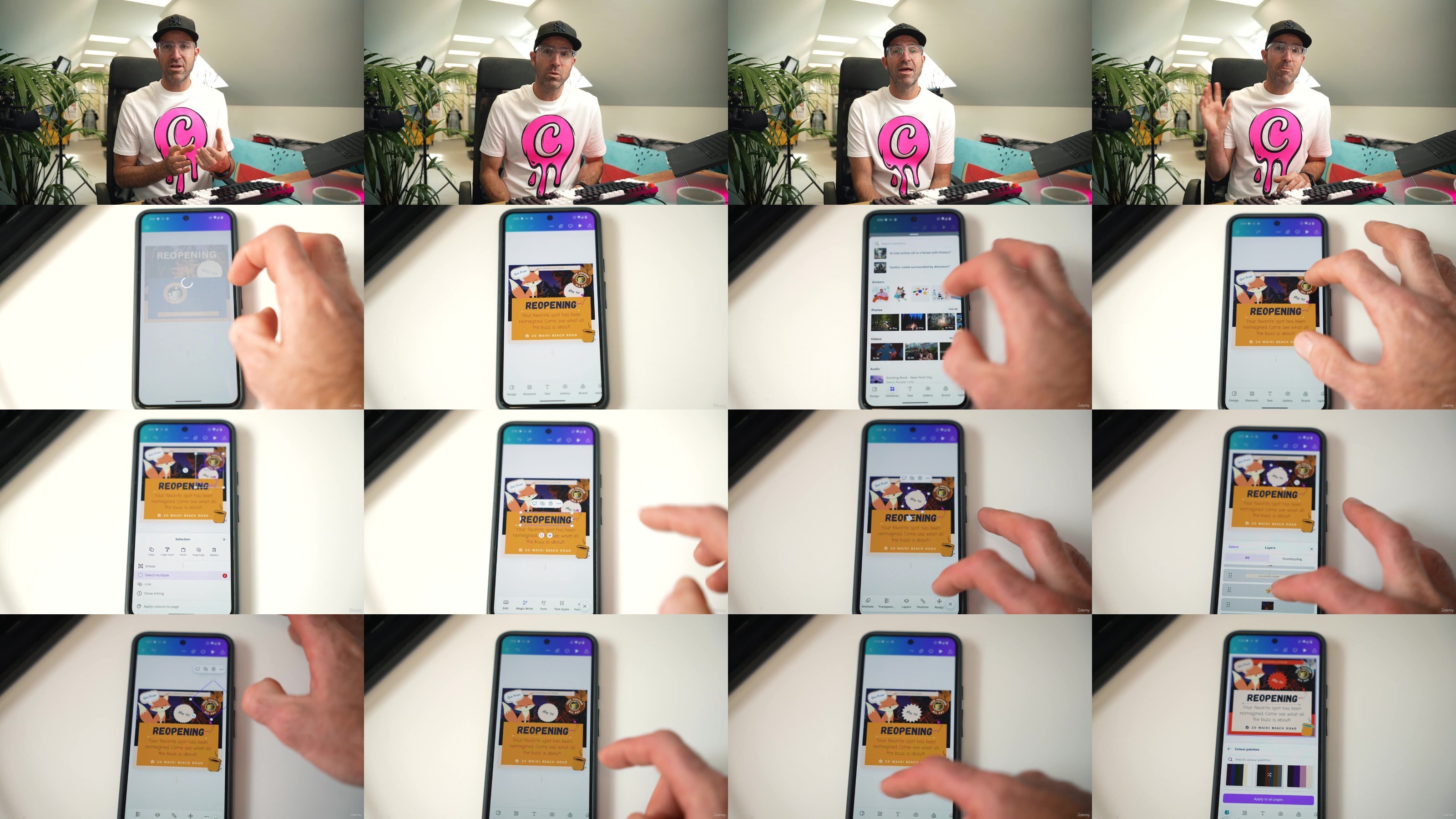
Editing Canva Designs on Your Phone
Using Canva Template Logos
MoodBoard WhiteBoard Brainstorm
Using Markup Tools, Stickies, Comments & Sharing
Logo Competitor Analysis in Canva
Designing a Custom Logo in Canva
Picking Fonts for Your Logo
Choosing Logo Colors
Using Gradients in Canva
Understanding Brand Kits
Light, Dark & Stacked Versions of Your Logo
Working with a Word Style Doc in Canva
Font Combinations & Pairing in Canva
Changing Text Styles in Canva
Styling Tables in Canva
Designing Header Banners in Canva Docs
Using Highlight Blocks, Dividers & Quotes in Canva Docs
Presentation Templates & Styles in Canva
Using Layouts in Presentations in Canva
Page Transitions in Presentations
Animating Pages & Page Elements
Creating Charts in Canva
Adding QR Codes in Canva
Adjusting Images in Canva
Darkening Images for Text Overlays
Using Magic Eraser in Canva
Magic Edit in Canva
Magic Expand in Canva
Trimming Video in Canva
Applying Video Filters & Adjustments
Animating Text & Changing Timing in Canva
Changing Stickers & Adding Motion Effects
Animating Photos in Canva
Finding Free Videos for Canva
Exporting Video for Social Media in Canva
Social Media & Marketing Graphics
Logo Design & Branding
Create Professional Documents & Presentations
Learn how to Edit Video
Requirements
All you need is a free Canva account. You can get a free trial from the Canva website to get started.
Description
Welcome to the Canva Design Essentials course! Led by professional designer Dan Scott, this course is your gateway to mastering Canva and building a strong foundation in design principles. Whether you're new to design or looking to sharpen your skills, you'll learn how to create impactful, real-world designs with ease.With 17 years of professional design experience and multiple teaching awards, Dan has taught over a million students worldwide. His hands-on approach and industry insights make learning engaging and accessible, empowering you to reach your creative potential.You'll learn:Design FundamentalsSocial Media & Marketing GraphicsLogo Design & BrandingCreate Professional Documents & PresentationsLearn how to Edit VideoCanva's AI FeaturesThis course is ideal for beginners in Canva and design, whether you're a teacher, student, small business owner, or aspiring designer. With step-by-step instructions, you'll gain confidence in creating visuals that communicate effectively and look professional.Take the first step toward becoming a Canva Hero—sign up now to transform your design skills!Requirements:All you need is a free Canva account. You can get a free trial from Canva here to get started.Who this course is for:Absolutely no previous Canva experience is required.This course is designed for newcomers to Canva and design in general, so no prior design experience is necessary.This is a relaxed, well-paced introduction, perfect for producing a wide range of projects. Only basic computer skills are necessary - if you can send emails and surf the internet, you're more than capable of mastering this course.What you'll learn:Creating Designs in CanvaWorking with Free & Paid Images in CanvaHow to Crop Photos in CanvaHow to Crop with Frames in CanvaHow to Name Your Canva Documents RightUploading Your Own Images into CanvaWhere to Get Free Photos for CanvaUnderstanding WorkspacesSquares, Circles + Layers & PositionHow to Export a JPG & PNG from CanvaMixing Colors in CanvaDesign Styles & Color Palettes in CanvaWorking with Text & Fonts in CanvaAdding Drop Shadows to Text in CanvaCurving Text Around a BadgeGroup, Lock & Aligning Elements in CanvaCreating Dotted & Arrowed Lines with TextModifying Shapes in CanvaChanging Color of Graphics & CollectionsEditing the Background Remover ToolAI Image Generator with Magic Media in CanvaMockups in CanvaTesting & Posting on Your Phone for InstagramEditing Canva Designs on Your PhoneUsing Canva Template LogosMoodBoard WhiteBoard BrainstormUsing Markup Tools, Stickies, Comments & SharingLogo Competitor Analysis in CanvaDesigning a Custom Logo in CanvaPicking Fonts for Your LogoChoosing Logo ColorsUsing Gradients in CanvaUnderstanding Brand KitsLight, Dark & Stacked Versions of Your LogoWorking with a Word Style Doc in CanvaFont Combinations & Pairing in CanvaChanging Text Styles in CanvaStyling Tables in CanvaDesigning Header Banners in Canva DocsUsing Highlight Blocks, Dividers & Quotes in Canva DocsPresentation Templates & Styles in CanvaUsing Layouts in Presentations in CanvaPage Transitions in PresentationsAnimating Pages & Page ElementsCreating Charts in CanvaAdding QR Codes in CanvaAdjusting Images in CanvaDarkening Images for Text OverlaysUsing Magic Eraser in CanvaMagic Edit in CanvaMagic Expand in CanvaTrimming Video in CanvaApplying Video Filters & AdjustmentsAnimating Text & Changing Timing in CanvaChanging Stickers & Adding Motion EffectsAnimating Photos in CanvaFinding Free Videos for CanvaExporting Video for Social Media in Canva
Overview
Section 1: Getting Started
Lecture 1 Intro to the Canva Essentials Course
Lecture 2 Getting Started with Canva
Lecture 3 Your Canva Design Brief
Section 2: Project 1 - Social Post Design
Lecture 4 Creating Designs in Canva
Section 3: Images & Photos Level 1
Lecture 5 Working with free & paid Images in Canva
Lecture 6 How to crop photos in Canva
Lecture 7 How to crop with Frames in Canva
Lecture 8 How to name you Canva documents right
Lecture 9 Uploading your own images into Canva
Lecture 10 Where to get Free photos for Canva
Lecture 11 There are lots of Workspaces
Lecture 12 Squares, Circles + Layers & Position
Lecture 13 How to Export a JPG & PNG from Canva
Lecture 14 Class Project 01 - Images & Shapes
Section 4: Color - Level 1
Lecture 15 How to mix your own colors in Canva
Lecture 16 What are Design Styles & Color Palettes in Canva
Section 5: Typography - Level 1
Lecture 17 How to work with text & fonts in Canva
Lecture 18 Class Project 02 - Reopening Quote
Lecture 19 How to add drop shadows to text in Canva
Lecture 20 How do you curve text around a badge
Section 6: Graphic & Shapes
Lecture 21 How to Group Lock & Aligning things in Canva
Lecture 22 Dotted & Arrowed Lines with Text
Lecture 23 How to modify shapes in Canva
Lecture 24 How to add & change color of Graphics & Collections
Lecture 25 Class Project 03 - Instagram Post
Section 7: Magic Studio - Level 1
Lecture 26 How to edit the Background Remover tool
Lecture 27 Class Project 04 - Background Remover
Lecture 28 Ai Image Generator with Magic Media in Canva
Lecture 29 Class Project 05 - Ai Images
Lecture 30 How to mockup in Canva
Lecture 31 Class Project 06 - Instagram Mockup
Section 8: Working with your Phone
Lecture 32 Testing & Posting on your Phone for Instagram
Lecture 33 Editing Canva Designs on your Phone
Section 9: Project 2 - Logo Design
Lecture 34 How to use Canva Template Logos
Lecture 35 Class Project 07 - Template Logo
Lecture 36 What is a MoodBoard WhiteBoard Brainstorm
Lecture 37 Class Project 08 - Logo Moodboard
Lecture 38 Markup Tools, Stickies, Comments & Sharing
Lecture 39 How to Run Logo Competitor Analysis in Canva
Lecture 40 Class Project 09 - Competitor Analysis
Lecture 41 Designing a Custom Logo in Canva
Lecture 42 Class Project 10 - Combination Logo
Lecture 43 How to Pick Fonts for Your Logo
Lecture 44 Class Project 11 - Logo Fonts
Section 10: Color - Level 2
Lecture 45 How to Pick Logo Colors
Lecture 46 Class Project 12 - Picking Your Logo
Lecture 47 How to use Gradients in Canva
Lecture 48 What is a brand kit
Lecture 49 Light Dark & Stacked Versions of Your Logo
Lecture 50 Class Project 13 - Branding
Section 11: Project 3 - Proposal Document
Lecture 51 Working with a word style doc in Canva
Section 12: Typography - Level 2
Lecture 52 Font Combinations & Pairing in Canva
Lecture 53 How to Change Text Styles in Canva
Lecture 54 How to Style Tables in Canva
Lecture 55 Design Header Banners in Canva Docs
Lecture 56 Highlight Block & Dividers & Quotes in Canva Docs
Lecture 57 Class Project 14 - Proposal
Section 13: Project 4 - Presentation
Lecture 58 Presentation Templates & Styles in Canva
Lecture 59 Production Video - Creating & Adding Content
Lecture 60 How to use Layouts in Presentations in Canva
Lecture 61 Page Transitions in Presentations
Lecture 62 Class Project 15 - Presentation
Lecture 63 Animating Pages & Page Elements
Lecture 64 How to Create Charts in Canva
Lecture 65 How to add QR Code App in Canva
Lecture 66 Class Project 16 - Presentation Polishing
Section 14: Project 5 - Poster
Lecture 67 How to Adjust Images in Canva
Lecture 68 How to Darken Images for Text Over the Top
Section 15: Magic Studio - Level 2
Lecture 69 What is the Magic Eraser in Canva
Lecture 70 What is Magic Edit in Canva
Lecture 71 Class Project 17 - Magic Edit
Lecture 72 What is Magic Expand in Canva
Lecture 73 Class Project 18 - Poster
Section 16: Project 6 - Video & Animation
Lecture 74 How to Trim Video in Canva
Lecture 75 How to Apply Video Filters & Adjustments
Lecture 76 How to Animate Text & Change the Timing in Canva
Lecture 77 How to Change Stickers & Add Motion Effects
Lecture 78 How do you Animate Photos in Canva
Lecture 79 Where to get Free Videos to use in Canva
Lecture 80 How to Exporting Video for Social Media in Canva
Lecture 81 Class Project 19 - Video
Section 17: What Next
Lecture 82 Whats Next after you Canva Course
Absolutely no previous Canva experience is required.,This course is designed for newcomers to Canva and design in general, so no prior design experience is necessary.,This is a relaxed, well-paced introduction, perfect for producing a wide range of projects. Only basic computer skills are necessary - if you can send emails and surf the internet, you're more than capable of mastering this course.
DDownload
https://ddownload.com/qxi6euuy1hz4/yxusj.Udemy.-.Canva.Design.Essentials.part1.rar
https://ddownload.com/5pzlbo54z6f0/yxusj.Udemy.-.Canva.Design.Essentials.part2.rar
https://ddownload.com/ol1bzaoabggp/yxusj.Udemy.-.Canva.Design.Essentials.part3.rar
https://ddownload.com/9cyqtuwix11c/yxusj.Udemy.-.Canva.Design.Essentials.part4.rar
https://ddownload.com/hqwkc92oa7on/yxusj.Udemy.-.Canva.Design.Essentials.part5.rar
RapidGator
https://rapidgator.net/file/383f8967b742deeeeb9c71b54ab85fcc/yxusj.Udemy.-.Canva.Design.Essentials.part1.rar
https://rapidgator.net/file/4742ab5c01dd47b44101f75c7d3e08da/yxusj.Udemy.-.Canva.Design.Essentials.part2.rar
https://rapidgator.net/file/36c24b8712fad526862ae20350a56d15/yxusj.Udemy.-.Canva.Design.Essentials.part3.rar
https://rapidgator.net/file/b45572798c7808229aa6e7ec62b82397/yxusj.Udemy.-.Canva.Design.Essentials.part4.rar
https://rapidgator.net/file/432e273dbf4431e4b3ce740fd469aa3e/yxusj.Udemy.-.Canva.Design.Essentials.part5.rar
NitroFlare
https://nitroflare.com/view/01E8383909D37E2/yxusj.Udemy.-.Canva.Design.Essentials.part1.rar
https://nitroflare.com/view/9AD799AE80866F2/yxusj.Udemy.-.Canva.Design.Essentials.part2.rar
https://nitroflare.com/view/4BA2FB78ACC078B/yxusj.Udemy.-.Canva.Design.Essentials.part3.rar
https://nitroflare.com/view/A966AFBE21D0289/yxusj.Udemy.-.Canva.Design.Essentials.part4.rar
https://nitroflare.com/view/B42DADF6FC01613/yxusj.Udemy.-.Canva.Design.Essentials.part5.rar
See full article