Windows 11 Superuser : Save Time And Become 10X Productive
Date: 25 May 2023 | Posted by: mitsumi
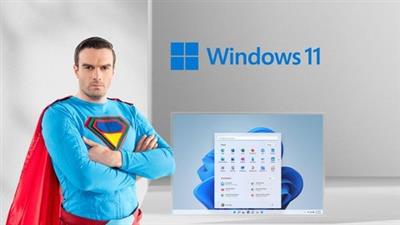
Windows 11 Superuser : Save Time And Become 10X Productive
Published 5/2023
MP4 | Video: h264, 1280x720 | Audio: AAC, 44.1 KHz
Language: English | Size: 345.03 MB | Duration: 0h 38m
From Zero to Supercharged Windows 11 Hero in little time
Published 5/2023
MP4 | Video: h264, 1280x720 | Audio: AAC, 44.1 KHz
Language: English | Size: 345.03 MB | Duration: 0h 38m
From Zero to Supercharged Windows 11 Hero in little time
What you'll learn
Use Windows 11 at Lightning fast Pace
Avoid laborious mouse clicking to perform actions
Understand all the amazing shortcuts Windows provides
Navigate Windows 11 using just key combos
Get the most out of your Windows 11 computer
Requirements
You will learn everything you need to know.
Description
Using a computer is one thing and getting things done efficiently is another.Yes, I can tell that you are wasting time on daily basis.Did you know that you're wasting time every single day. Every time you move your mouse to launch an app you have wasted time. Every time you click the maximize icon, you have wasted time. How much time? At least 20 minutes per day, which really adds up, that's a 15 working days per year, you could be saving right now.No other Windows 11 course takes you from zero to supercharged hero in so little time. Take this course if you want to:Use Windows 11 at Lightning fast PaceAvoid laborious mouse clicking to perform actionsUnderstand all the amazing shortcuts Windows providesGet the most out of your Windows 11 computerWhat You'll Learn:Navigate Windows 11 using just key combosNavigate text documents without laborious trackpad or mouse usageOpen applications lightning fastSwitch between open applications quicklyTune up your web browsing experience and solve the all too common browser Slow DownAnd way more!Who this course is for:Anyone who want to upgrade or learn new skillsNew Windows 11 usersTechnology professionals who want to get things done quicklyPeople looking to learn tips and tricksBeginning to Intermediate Windows usersBusinesses training employees on Windows 11
Overview
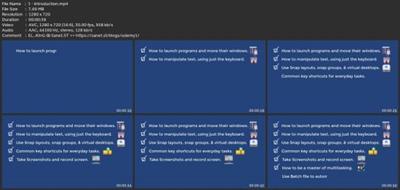
Section 1: Introduction
Lecture 1 Introduction
Section 2: Launching Programs
Lecture 2 How to Launch Programs without using your Mouse
Lecture 3 How to Minimize / Maximize Programs Quickly
Lecture 4 How to Move Around Open Applications via Simple Key Combo
Section 3: Work with Text like a Pro
Lecture 5 Selecting Text Like a Pro
Lecture 6 Cut, Copy, Paste Multiple Items
Section 4: Multitasking
Lecture 7 Multitask using Snap Layout, Snap Groups, and Virtual Desktops
Section 5: Files and Documents
Lecture 8 How to Work on Documents and File Explorer efficiently
Section 6: Automation
Lecture 9 How to use Batch files to Open Programs and Websites Automatically
Section 7: Screen Capturing
Lecture 10 Taking Screenshots like a Pro
Lecture 11 Record your Screen and Edit Videos on Windows 11
Beginners using Windows 11 Computers
Download link
rapidgator.net:
uploadgig.com:
nitroflare.com:
1dl.net:
See full article